In this article, we will show you in detail how to fix critical error in WordPress.
Is your WordPress website showing a Critical Error?
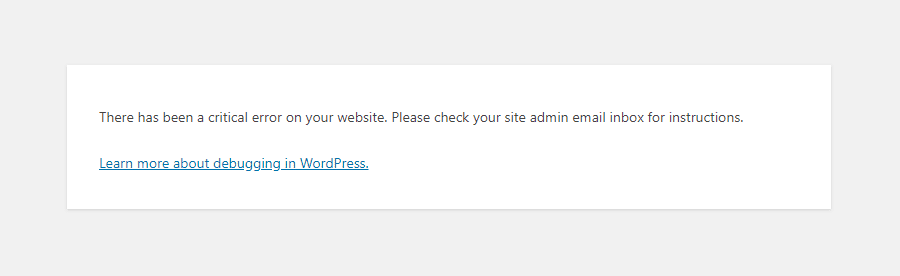
Sometimes you see a message on your website when you visit “There has been a critical error on this website. Please check your site admin email inbox for instructions.” In the link, you will see the complete WordPress guide.
What is a Critical Error in WordPress?
A Critical Error in WordPress (Fatal Error) is caused when a certain script or a piece of code is stopping a WordPress website from working. Then the website shows a message when you visit it. Sometimes you can see a White Screen of death, it also might have been caused by a Fatal Error on the website.
What Causes a Critical Error in WordPress?
Generally, a Critical Error is caused by a Malfunctioned/Outdated plugin or theme and any other piece of code that prevents the WordPress website from working correctly.
Recently added custom code to the Website can also trigger the Critical Error.
All the plugins/themes are tested before being released by ensuring they are working. Critical Error can also be caused by a conflict between two plugins or a plugin and theme.
Let’s see how you can fix the Critical Error in WordPress and get your website back.
Fixing WordPress Critical Error using Critical Error Admin Email Notification?
You need to open the email you received from WordPress about the Critical Error on the website. There you will see the exact plugin/theme causing the issue.
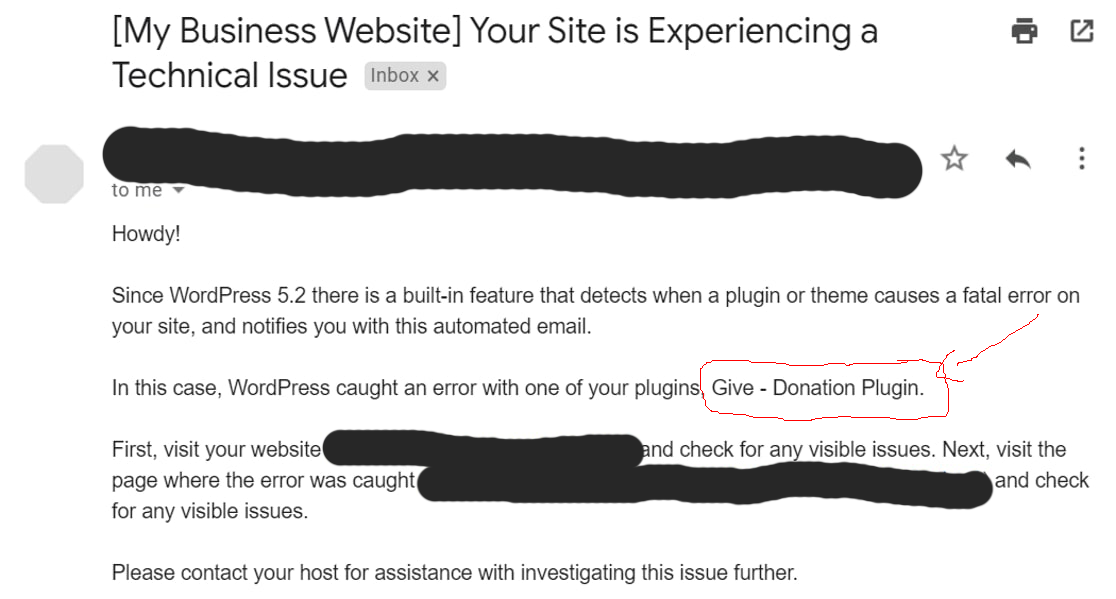
In the above image, you see the red area pointed is the culprit of the Critical Error on the website. You need to deactivate the plugin to get the website back live again.
Now, the question here is how can I deactivate the plugin from the website as you won’t be able to access the website Dashboard.
We can help to fix the Critical Error on your website see our pricing.
How to deactivate a plugin/theme using FTP/Cpanel?
You need to have access to Cpanel/FTP if you want to deactivate the plugin from the website. In this tutorial, we will use Cpanel to show you how to Deactivate a Plugin/Theme from using FTP/Cpanel.
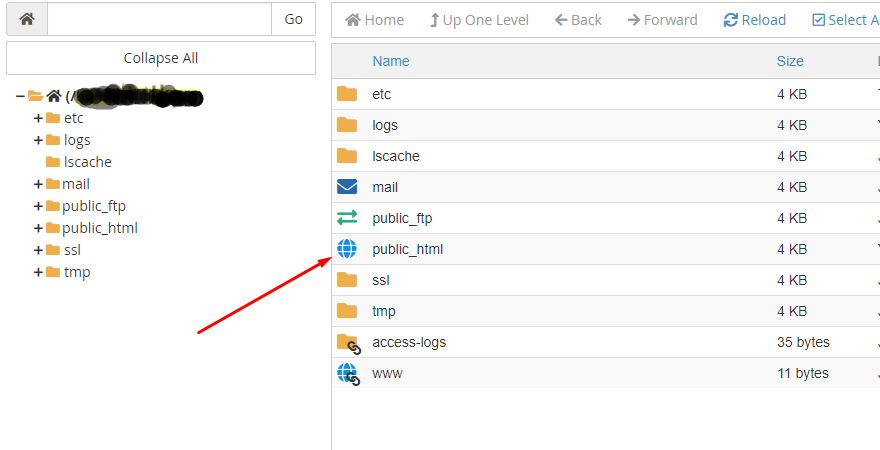
After login to Cpanel, you need to Go to Look for File Manager.
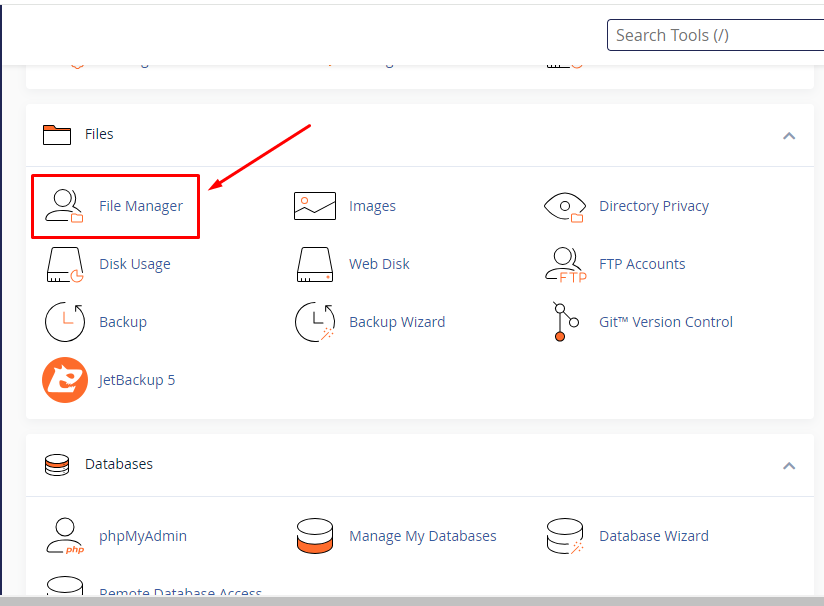
After opening the File Manager you need to Go to >> Public HTML as usually the Website files are located in that folder in all host servers.
In Public HTML you need to find the Folder WP-Content and then need to Go to the Plugins folder and rename the plugin folder.
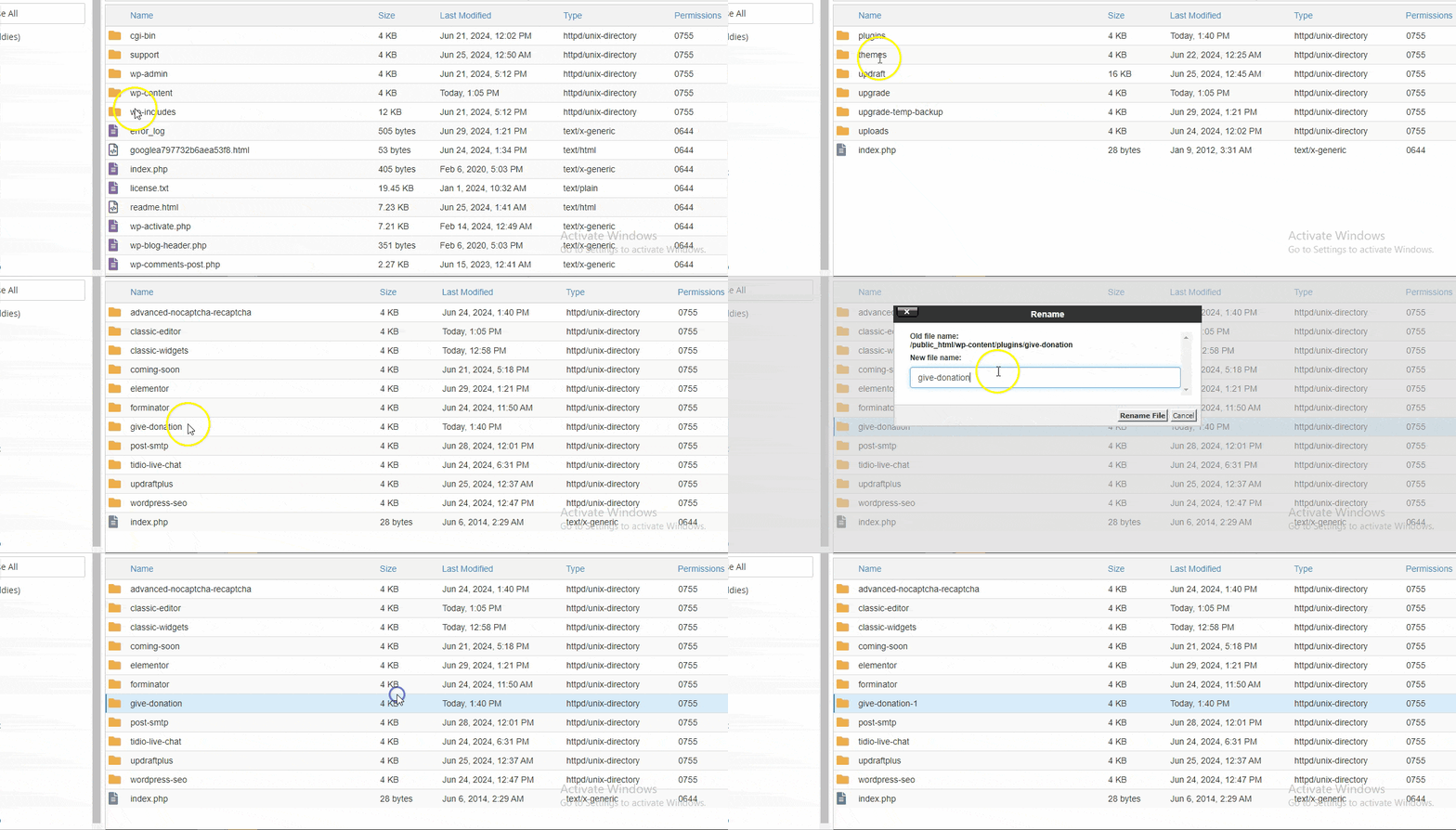
Then you need to go to the website and reload then it will be working fine. So now you need to get support about the plugin from the plugin author or you can use an alternate plugin for the same purpose.
We can help to fix the Critical Error on your website Get a Quote.

webadmin
WordPress guidance, troubleshooting tips and practical website advice from WP-Buddies.