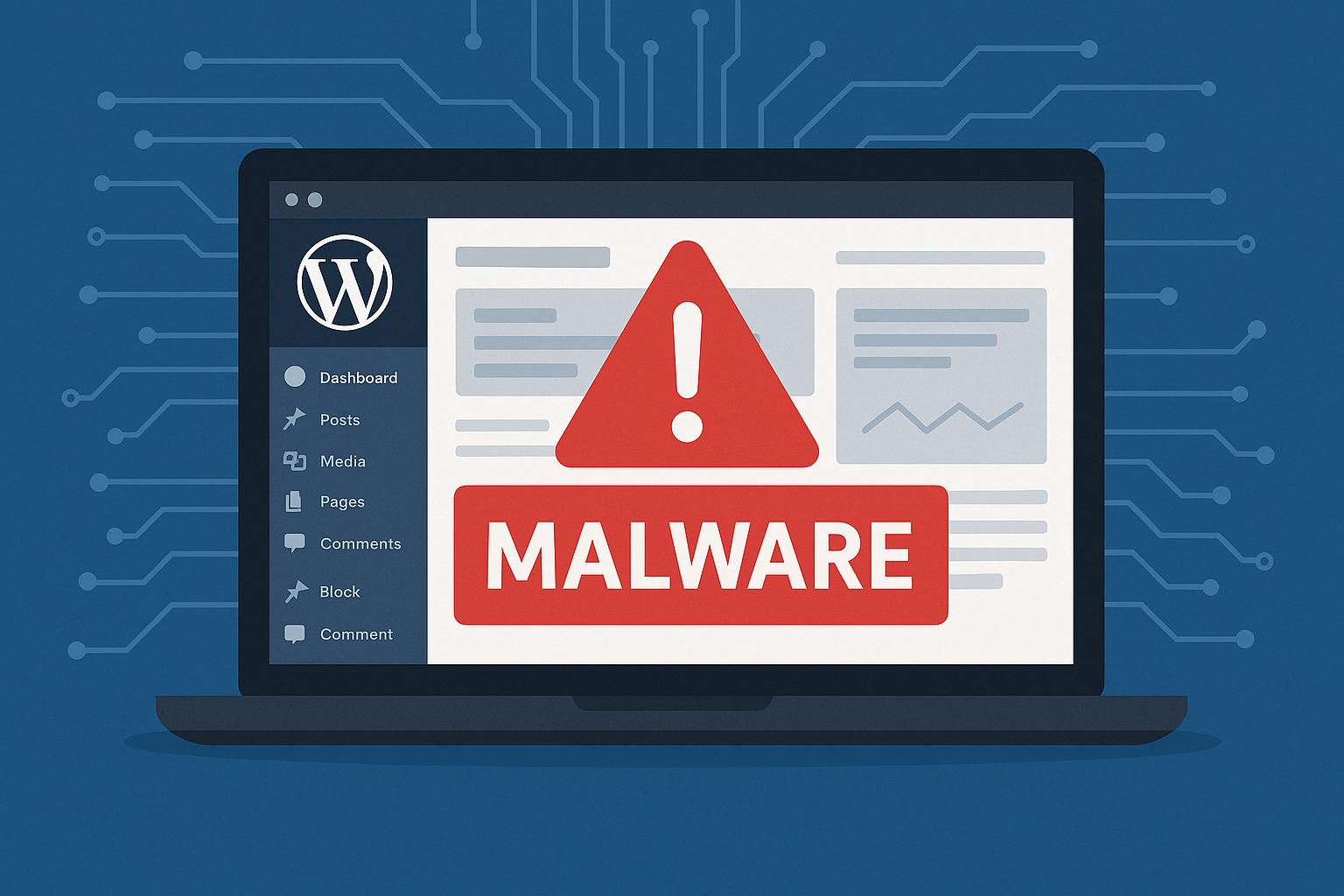
In today’s digital landscape, website security is paramount, especially for WordPress, the most popular content management system globally. With its widespread use, WordPress has become a frequent target for cyberattacks, mainly through malware infiltration. WordPress malware removal is a process that every website owner must be familiar with to protect their site and maintain its integrity. This guide outlines the essential steps to identify, remove, and prevent malware on your WordPress site, ensuring long-term security and peace of mind.
Understanding the Threat: What is WordPress Malware?
WordPress malware is malicious software or code embedded into your website, intending to damage, disrupt, or gain unauthorised access. This malware can enter many forms, including viruses, spyware, and ransomware. If left unchecked, it can compromise your website’s functionality, leak sensitive data, or even hijack your content for nefarious purposes. Understanding the nature of this threat is crucial to mitigating the risks and effectively removing the malware.
Common Types of Malware in WordPress Sites
Various forms of malware target WordPress websites, each with distinct characteristics. One of the most common types is backdoors, which give hackers remote access to your site, allowing them to execute commands, upload malicious files, or bypass authentication. Another prevalent type is phishing malware, which creates fake login pages to steal users’ credentials. Additionally, SEO spam injects spammy keywords or links into your website content, affecting your search engine rankings and redirecting traffic to malicious sites. Lastly, ransomware can encrypt your website files, holding them hostage until you pay a ransom.
How Malware Infiltrates WordPress Sites
Malware infiltration happens through numerous vectors. Often, outdated themes or plugins serve as open doors for hackers, exploiting vulnerabilities in older versions. Another common entry point is through compromised login credentials; weak passwords or unsecured admin pages can provide easy access for attackers. Especially when not monitored, file uploads allow malicious files to sneak in. Lastly, cross-site scripting (XSS) and SQL injections are more technical methods hackers use to embed harmful code into your site through form submissions or unsecured databases.
The Potential Risks of Malware on Your Website
Malware isn’t just a minor inconvenience. It poses serious risks that can cripple your website. A compromised site can lead to data theft, exposing sensitive information of your users, which can damage your credibility and potentially lead to legal repercussions. Furthermore, malware can significantly degrade your website’s performance, causing slow loading times, downtime, or even a complete shutdown. In severe cases, malware can block your website by search engines, erasing your online visibility. The longer the malware remains undetected, the more damage it can inflict.
Signs Your WordPress Site Might Be Infected
Knowing the signs of a malware infection is critical to reacting swiftly before the damage becomes irreparable. Several indicators, some more subtle than others, can point to a compromised site.
Unusual Website Behavior to Look Out For
Sudden and unexplained changes in how your website functions should raise red flags. For instance, malware could be at play if your website redirects visitors to suspicious or unrelated websites or unauthorised content appears on your pages. Furthermore, unauthorised pop-ups or ads might begin appearing on your site, which is another sign of infection. Users might also report difficulty accessing certain pages, which could indicate that malicious code is interfering with the website’s functionality.
Sudden Drop in Performance or Traffic
A sharp decline in website performance—such as slow loading speeds, frequent crashes, or timeouts—can also be a symptom of malware. Additionally, a sudden dip in web traffic may indicate that users are being redirected elsewhere or search engines are starting to penalise your website for malicious behaviour detected by their algorithms. Performance issues frustrate users and impact your site’s SEO ranking, further compounding the problem.
Alerts from Web Browsers or Security Tools
Web browsers like Chrome or Firefox often issue warnings if they detect malware on your site, flagging it as unsafe. Similarly, security tools and plugins you’ve installed might generate alerts if they identify suspicious activity, such as modifying core files or using unfamiliar scripts. These warnings should never be ignored, as they often provide the earliest indication of an infection.
Immediate Actions to Take When You Suspect an Infection
Time is of the essence when dealing with a suspected malware infection. Acting swiftly can prevent further damage and limit the exposure of sensitive information.
Isolating the Site: Why It’s Important to Act Fast
The first step is to isolate the infected site to prevent the malware from spreading or causing additional harm. This may involve taking your site offline temporarily or blocking access to certain areas until the threat is neutralised. By doing this, you halt the spread of malware to users and stop attackers from making further changes.
Backing Up Your Website Before Making Any Changes
Before any attempt to clean the site, it’s critical to back up your website. This ensures you have a restore point should anything go awry during the malware removal process. You can use backup plugins or manually download a copy of your website files and database. This step provides a safety net, so you can always revert to a previous state even if the cleanup goes wrong.
Temporarily Disabling Your Site to Prevent Further Damage
Turning off your site temporarily, or at least setting it to maintenance mode, can prevent users from interacting with the infected site and getting exposed to malicious code. This also stops attackers from continuing to exploit your website while you focus on the cleanup. Though this might temporarily disrupt your site’s operations, it is a crucial step to safeguard your reputation and data.
Scanning for Malware: Tools and Techniques
Effective malware removal begins with identifying where the malicious code resides. Fortunately, numerous tools and methods help you pinpoint the infection.
Using Automated Malware Scanning Tools
Several reliable malware scanning tools are designed specifically for WordPress. Tools like Sucuri, Wordfence, and MalCare scan your website thoroughly, looking for known malware signatures, vulnerabilities, and suspicious behaviour. These tools often provide detailed reports, helping you identify the infected files and cleaning them up.
Manual Inspection of WordPress Files and Folders
In some cases, an automated scan might not catch every instance of malware, which makes manual inspection necessary. This involves going through your site’s files via FTP or your hosting provider’s file manager. You must compare the core WordPress files with a clean installation to spot unauthorised changes or added files. This method is time-consuming but often effective for spotting deeply hidden malware.
Recognising Suspicious Code and Files
You may find files with unusual names or unfamiliar scripts embedded in your website’s core during manual inspection. Files that don’t belong in directories like wp-content, wp-admin, or wp-includes are immediate red flags. Additionally, watch for modified timestamps on files you know haven’t been updated recently. Malicious code often takes the form of base64 encoded text or large blocks of gibberish that don’t belong.
Cleaning Up the Infected Files
Once the malware is identified, the cleanup process can begin. It’s essential to follow the correct steps to ensure no remnants of the malware remain.
Removing Malicious Code from WordPress Files
Manually removing the malicious code is a delicate process. You’ll need to edit infected files, stripping out the malicious sections without disrupting the functionality of the rest of the site. Sometimes, you might need to replace compromised files with clean versions from the official WordPress repository.
Cleaning Up the Database: How to Eliminate Hidden Malware
Malware can also lurk in your WordPress database, often hiding within posts, comments, or plugin settings. Use SQL queries or tools like phpMyAdmin to check for unauthorised modifications or unusual entries. Cleaning up these records ensures the malware doesn’t regenerate after file-level cleanup.
Reinstalling Core WordPress Files Safely
Sometimes, the safest course of action is to reinstall core WordPress files. This guarantees that no malicious code remains within the platform’s essential components. You can do this through the WordPress dashboard or via FTP, but make sure to leave your content and uploads intact by only replacing the necessary core files.
Strengthening Security Post-Cleanup
After removing malware, the next step is to fortify your website’s security to prevent future attacks.
Updating Plugins, Themes, and WordPress Core
Outdated software is often the entry point for malware. To protect your site from known vulnerabilities, regularly update all plugins, themes, and the WordPress core itself. These updates often contain patches that close security loopholes exploited by hackers.
Implementing Strong Passwords and User Permissions
Weak passwords are an open invitation for cybercriminals. Ensure that all users on your site use strong, unique passwords and employ role-based permissions to limit access. Avoid granting admin privileges to users who don’t need them, reducing the risk of an accidental or malicious breach.
Setting Up Regular Security Audits
A regular security audit will help you avoid potential threats. Security plugins like Wordfence or Sucuri can offer ongoing monitoring of your website, alerting you to suspicious activities, failed login attempts, or unauthorised changes to your files.
Adding Extra Layers of Protection
Adding additional protective measures is wise even after cleaning your site and reinforcing its security.
Using Security Plugins to Guard Against Future Attacks
Security plugins such as iThemes Security or All In One WP Security provide an extra layer of defence by blocking malicious IP addresses, limiting login attempts, and scanning for malware regularly. They act as your first line of defence in case of future threats.
Enabling Two-Factor Authentication for All Users
Two-factor authentication (2FA) adds an extra step for logging in, requiring users to verify their identity with a second device or email. This significantly reduces the chances of unauthorised access even if someone gains access to login credentials.
Setting Up a Firewall for Your WordPress Site
Firewalls monitor and filter incoming traffic, blocking malicious requests before they reach your WordPress site. A web application firewall (WAF) like Cloudflare or Sucuri helps protect your site from distributed denial-of-service (DDoS) attacks, SQL injections, and other hacking attempts.
Regular Maintenance for Long-Term Protection
Maintenance must become a routine part of managing your WordPress site to ensure long-term security.
Scheduling Automatic Malware Scans
Scheduling regular, automatic malware scans helps detect any threats early before they can wreak havoc on your site. Many security plugins offer automated scanning, ensuring your site remains monitored even when you’re not actively managing it.
Backing Up Your Website Regularly
Regular backups ensure that if malware strikes again, you can quickly restore a clean version of your website. Use on-site and off-site backups to ensure you have a working copy of your site, even in a worst-case scenario.
Monitoring Activity Logs for Suspicious Behavior
Keeping an eye on activity logs lets you track who is accessing your site and what changes are being made. Sudden, unauthorised changes to critical files or settings can alert you to potential malware or hacking attempts.
What to Do If You Need Professional Help
Sometimes, malware removal is too complex or too time-consuming to handle alone. In these cases, professional help may be necessary.
When to Call in a Security Expert
If you’ve attempted basic cleanup steps and your site remains compromised, or if the malware has deeply embedded itself into your files and database, it’s time to bring in a professional. They possess the tools and expertise to deal with complex infections that may be beyond the capabilities of standard malware removal techniques.
Finding Reliable Malware Removal Services
Several trusted companies, including Sucuri, SiteLock, and MalCare, specialise in WordPress malware removal. Look for services that offer not only cleanup but also ongoing security monitoring and prevention.
Understanding Costs and Benefits of Professional Site Cleanup
While professional malware removal services can be costly, they offer peace of mind by ensuring your website is thoroughly cleansed and secured. Investing in these services can save you from lost revenue, damaged reputation, and the complexities of dealing with malware alone.
By following these steps and implementing the right tools and strategies, you can effectively handle WordPress malware removal and ensure your website stays safe and secure for the long term.

webadmin
WordPress guidance, troubleshooting tips and practical website advice from WP-Buddies.