WordPress Importer Export Divi Theme and Child Theme
Table of Contents
-
Introduction
-
What Is WordPress Importer Export?
-
Why Use It with Divi Theme and Child Theme?
-
3.1 Positive Benefits
-
3.2 Negative Issues
-
-
Preparing Divi Theme and Child Theme for Export
-
Importing Divi Theme and Child Theme
-
Common Errors and Fixes
-
Best Practices for Success
-
7.1 Use High-Quality Tools
-
7.2 Maintain Consistent Backups
-
7.3 Optimize Performance
-
7.4 Test Thoroughly
-
-
Tools and Plugins to Simplify Import/Export
-
Conclusion
Introduction
Publishing blog posts is only half the job of running a WordPress site. There is also storing design and settings securely in migrations. Perhaps the most empowering WordPress theme available today is the Divi theme. Most webmasters extend Divi with a child theme to make designs personalized.
But what if you move your site to another server? Or you are backing up your work for security reasons? That is where WordPress Importer Export comes in handy. It allows you to import Divi Theme and Child Theme along with all related settings.
This guide covers the whole procedure of WordPress Importer Export Divi Theme and Child Theme. You’ll learn why you should do it, how to prepare, and which tools will ensure success. By the time you are done, you will be sure to carry out migrations, backups, or testing environments without sacrificing your design work.
What Is WordPress Importer Export?
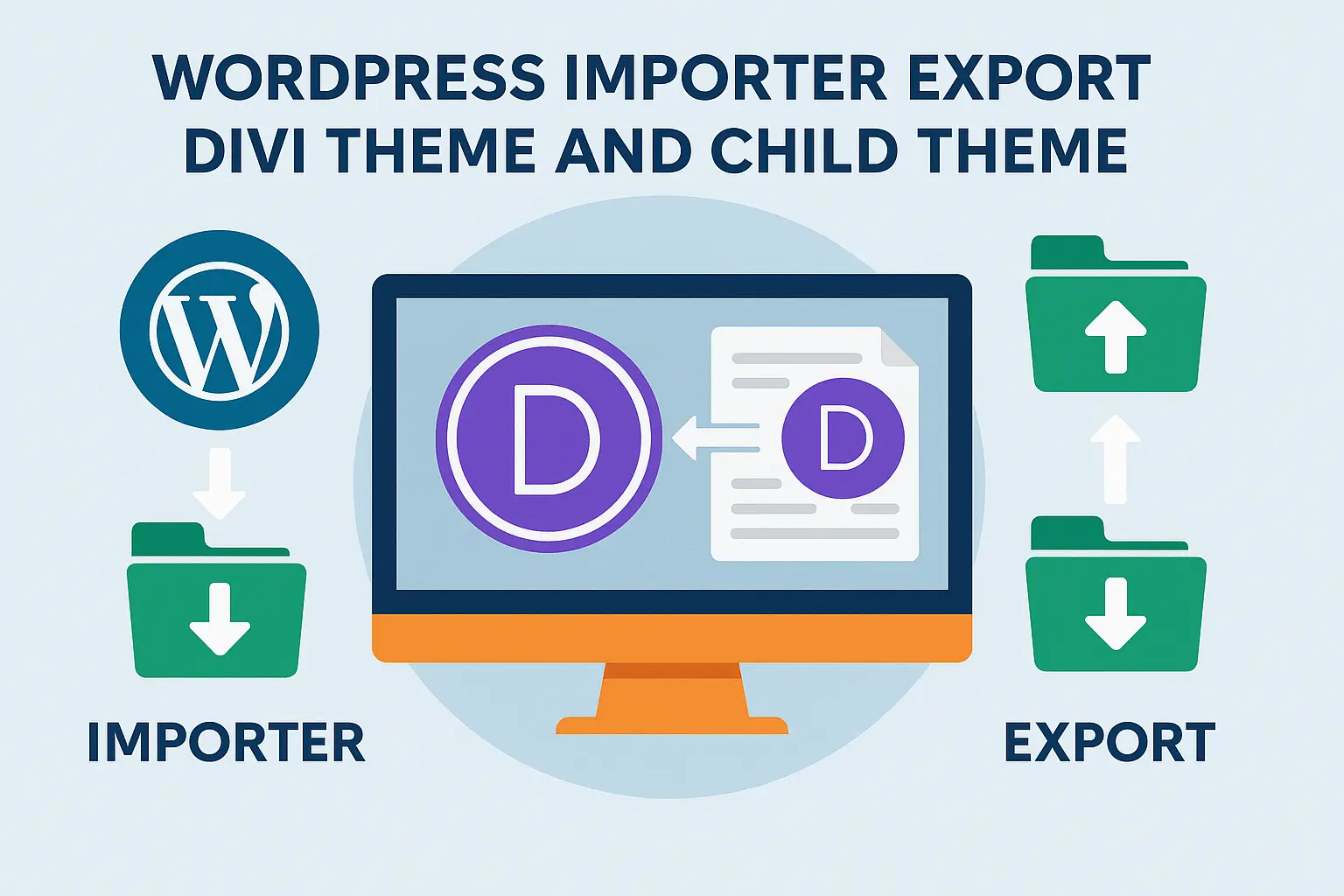
WordPress includes built-in import and export functionality. These simplify data movement between sites. Using these, you can export your pages, posts, menus, and even theme settings.
Export tool exports in an XML file. This XML file contains your chosen content and design elements. The importer tool reads the XML file and imports it into another WordPress installation.
For all other themes, this is not an issue. With Divi, though, it is not the case. Divi includes advanced layouts, modules, and templates. A child theme may also include special PHP or CSS changes. Such changes may not transfer over properly without properly implementing Importer Export. This is why WordPress Importer Export Divi Theme and Child Theme is so important to learn.
Why Use It with Divi Theme and Child Theme?
Positive Benefits
With WordPress Importer Export to utilize with Divi Theme and Child Theme, there are several positive results. One, it is time-saving. Instead of rebuilding your layouts from the ground up, you duplicate them over instantly. Two, it is precise. Every setting, widget, or template imports exactly as it had been.
For developers, it makes it easy for them to replicate sites quickly for clients. For blog authors, it avoids any compromise of design integrity when transferring to a new host. It serves as a backup as well. Even when your website crashes, you can restore your website using the exported files. All these make the process vital for experts dealing with Divi.
Negative Issues
But all that shines ain’t gold. WordPress Importer Export usage in a wrong way results in problems. Layouts are ruined. Images don’t appear. Child theme functions don’t work. In extreme cases, constant importing of data overflows your site.
Another con is speed. Large sites with many images and layouts will take longer to import. If your server has very little PHP memory, problems arise. This is why adhering to best practices is worthwhile. They avoid frustration and downtime.
Preparation of Divi Theme and Child Theme for Export
You need to prepare first before exporting. Start by updating WordPress, the Divi theme, and your child theme. Updates reduce import compatibility problems. Next, back up your entire site. In this manner, you have a backup if something goes wrong.
Now head to the WordPress dashboard. From Tools, select Export. There are choices to export posts, pages, or all. In Divi, it is better to export all. This way, menus, customizer settings, and widgets get exported along with it.
Divi also has a portability feature. You can export theme settings within the Divi Theme Options panel. You can also export layouts from the Divi Library. These are JSON format and are very reliable to re-import.
Finally, don’t ignore the child theme files. Export them using FTP or zip the theme folder. Plugins like All-in-One WP Migration facilitate this. A complete export puts you at ease while importing.
Importing Divi Theme and Child Theme
Once you have exported, you can then import. Start with a new WordPress install. Go to Tools → Import in the dashboard. Install the WordPress Importer plugin if it is not already installed. Upload your XML file thereafter.
Lastly, import your Divi settings. Utilize the portability feature within Divi Theme Options. For layouts, go to the Divi Library and upload your JSON files. This will reinstall custom modules and templates.
For the child theme, go Appearance → Themes → Add New. Import the zip file of the child theme. Activate after installation. If exported via FTP, simply upload the folder into wp-content/themes.
After importing, visit the site. Set menus, widgets, and homepage settings. Double-check that custom PHP or CSS in the child theme is working. If it seems to be broken, re-import the corresponding file through Divi portability. Testing keeps everything from appearing atrociously before launch.
Common Errors and Fixes
Even with precautions, things do go awry sometimes. One common issue is a broken layout. This normally takes place when images were not imported. To fix, use a plug-in like Import External Images.
The second problem is the disappearance of child theme functions. When this occurs, re-upload the child theme manually. Make sure that style.css and functions.php are included.
Importing processes sometimes take too long. This is because of server capacity. You can fix this by increasing PHP memory or splitting the import file into smaller sections.
Fuzzy and distorted images also happen sometimes. This is because of faulty cropping. Rearrange image sizes using the Regenerate Thumbnails plugin. These quick fixes cut debugging time into hours.
Best Practices for Success
Use High-Quality Tools
Don’t rely only on default importer. Use plugins like All-in-One WP Migration or Duplicator Pro. They handle Divi files better.
Keep Regular Backups
Back up before you start always. Plugins like UpdraftPlus or BlogVault have scheduled backups. You can restore your site if something goes wrong.
Improve Performance
Clean your site prior to exporting. Remove unwanted plugins, empty the cache, and compress images. This trims your export files and makes them straightforward to import.
Test Well
Don’t ever skip testing. Go through your site on desktop, tablet, and mobile. Test menus, headers, and custom CSS. Testing prevents unpleasant surprises after migration.
Tools and Plugins to Make Import/Export Easy
There are several plugins that make WordPress Importer Export Divi Theme and Child Theme simple. Drag-and-drop migration is offered by All-in-One WP Migration. Cloning entire sites is excellent with Duplicator Pro.
UpdraftPlus is perfect for backup and restoration. WP Migrate DB does database transfers for advanced users. Regenerate Thumbnails plugin ensures your images are sharp after migration.
For Divi-specific needs, leverage the native portability. Export theme settings, layout, and customizer settings natively. This Divi functionality is effective and efficient. These tools reduce errors and save time.
Conclusion
WordPress Importer Export Divi Theme and Child Theme process is required for experts and beginners alike. It ensures your look, settings, and content move safely from site to site.
When used in the right way, a number of positive results are obtained. It saves time, gives precision, and creates backups. In its misuse, negative issues like non-functional designs or missing files appear. Best practices keep them away.
The process is facilitated by efficient plugins such as All-in-One WP Migration, Duplicator, and UpdraftPlus. Divi’s own portability function makes layouts and designs migrate seamlessly.
Ultimately, preparation and testing are the secrets. Always backup, compress images, and check imports thoroughly. When done correctly, WordPress Importer Export Divi Theme and Child Theme is a trusted instrument. It ensures your site appears flawless after migration and protects your hard work.

webadmin
WordPress guidance, troubleshooting tips and practical website advice from WP-Buddies.